I’ve been playing with a lot of development work flow tools over the last few weeks. I was an early adopter of Docker and have always been passionate about reducing friction in the development process, especially locally. Quick performance wins for individual developers add up to substantial productivity improvements across a whole team. I’ve been interested in how these tools are evolving, as we expand beyond the basic tools Docker provided with containers. As an outcome of this exploration I’m going to write a few posts on these tools.
The posts:
Tilt:
Tilt manages local development instances for teams that deploy to Kubernetes.
Tilt focuses on being easy to setup and deploy. Tilt is designed to be configured and shipped with your source code, allowing a team to work on a consistent and shareable development environment.
Like many of other tools, it has a file system watcher that identifies changes you’ve made to your code and rebuilds and redeploys your application.
Tilt also has a console and web UI that allows you to see the state of your local application.
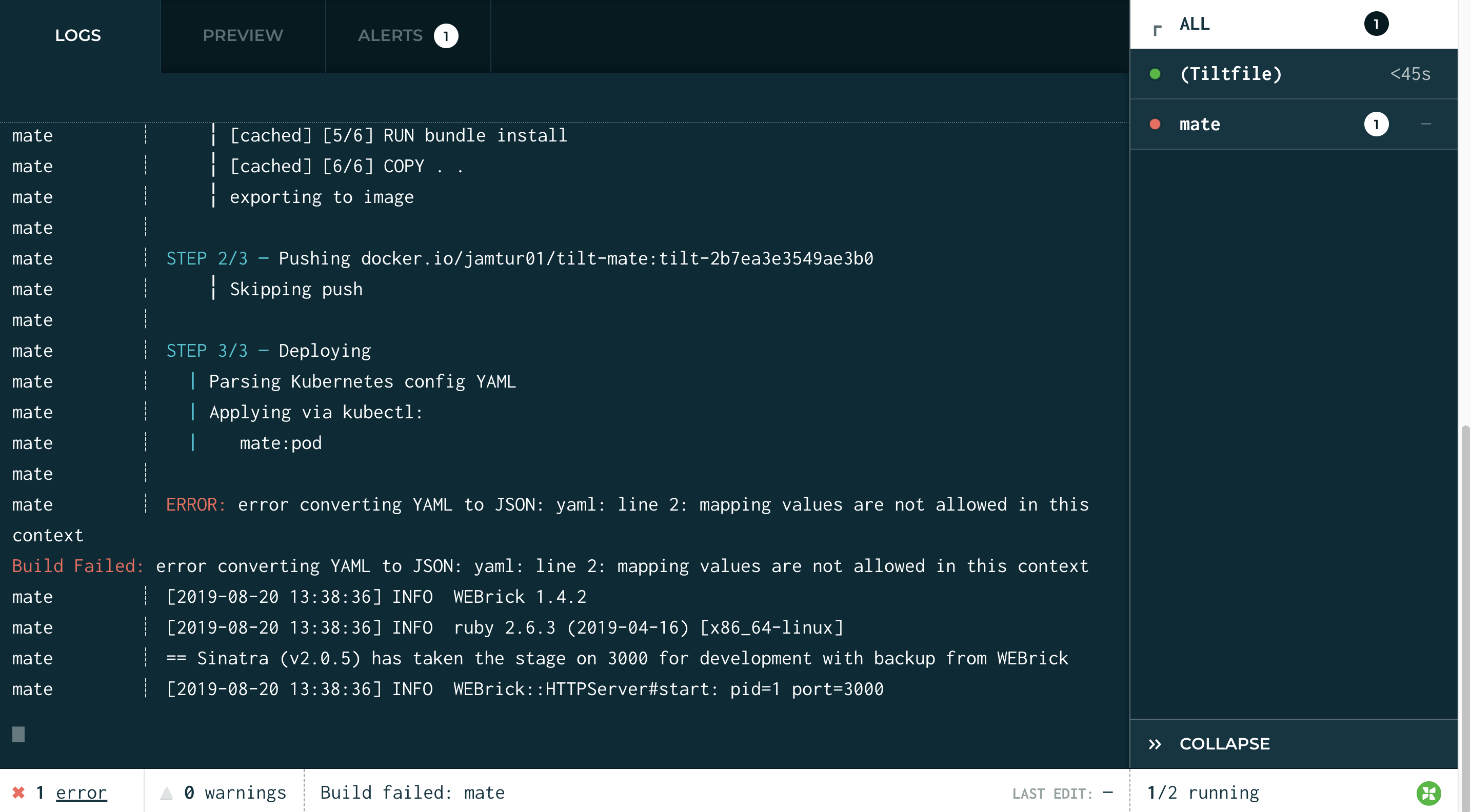
Let’s take a look at installing Tilt and configuring a service.
Installing Tilt
We’re going to install on macOS but the documentation has installation instructions for Linux and Windows too. We will need to install Docker and a local Kubernetes environment (you could also use an external Kubernetes cluster). One of the easiest ways to do this locally is to use Docker for Mac, which installs both. You could also install something like Minikube.
Install one or the other and initiate a local Kubernetes cluster, either enabling it in Docker for Mac, or initiating and building a Minikube cluster.
Then we can install Tilt itself via Homebrew. Tilt has its own tap you can add and a recipe called tilt.
$ brew tap windmilleng/tap$ brew install windmilleng/tap/tiltYou can later upgrade Tilt with brew update; brew upgrade tilt.
We can now confirm Tilt is working.
$ tilt versionv0.10.4, built 2019-08-14Now let’s add Tilt to a service we’re building.
Configuring Tilt
We’re going to use a Tilt example we’ve pre-built to take you through the process. You can find it on Github.
Let’s checkout our project.
$ git clone git@github.com:jamtur01/tilt-example.git$ cd tilt-example$ lsREADME.md Tiltfile k8s-pod.yaml mateHere we’ve checked out the project, changed into the resulting directory, and listed its contents. We have a README for the project, the files for an application in a directory called mate, including a Dockerfile that builds the application. The mate application is a Sinatra-based Ruby application. We have a Kubernetes configuration for a pod to run our application. Finally, we have a Tiltfile that contains the definition for our application.
Our Kubernetes configuration is in a file called k8s-pod.yaml. This file defines the basics of a pod to run our mate application. Let’s look at it first.
---apiVersion: v1kind: Podmetadata: name: mate labels: app: servicespec: containers: - name: mate image: jamtur01/tilt-mate ports: - containerPort: 3000We’ve created a Kubernetes Pod configuration containing a single container, using the image jamtur01/tilt-mate. We’ve also mapped port 3000 inside the pod to port 3000 on the local host. Tilt will build this image if it doesn’t exist as part of the deploy process.
The Tilefile is Tilt’s definition of the application. It tells Tilt how to build and deploy the application. The file is written in Skylark, a language developed for the Bazel build system. Because of the language the Tiltfile is technically a program and can contain functions, arrays, and loops. Let’s take a look at the file now.
k8s_yaml('k8s-pod.yaml')
docker_build('jamtur01/tilt-mate', 'mate')
k8s_resource('mate', port_forwards=3000)Our file is broken into functions. The first, k8s_yaml, defines the location of a Kubernetes configuration file. You can also specify multiple files, in an array:
k8s_yaml(['yo.yaml', 'mate.yaml'])Or by specifying multiple functions.
k8s_yaml('yo.yaml')k8s_yaml('mate.yaml')Or make calls to external programs, like Helm.
k8s_yaml(helm('chart_directory'))The next function, docker_build, tells Tilt what to build using Docker. The function:
docker_build('jamtur01/tilt-mate', 'mate')Is the equivalent of running:
docker build -t jamtur01/tilt-mate ./mateAnd building the application it finds in the mate directory, using the Dockerfile in that directory, into an image called jamtur01/tilt-mate. You can also provide build arguments or specify a particular Dockerfile, for example one specific to a development build.
Lastly, the k8s_resource function, allows you to work with any Kubernetes resources you define in your Tiltfile, for example the pod we’ve defined in our k8s-pod.yaml file will become a resource inside Tilt. At this point you can only perform two operations on resources: name them and forward ports. Our specific function maps port 3000 inside the mate pod to port 3000 on the local host.
k8s_resource('mate', port_forwards=3000)Now let’s see Tilt in action.
Running Tilt
Now we’ve configured an application with Tilt. We can run it using the tilt up command.
$ tilt upWe can see Tilt has launched a CLI-based console, build our Docker image, and deployed our pod.
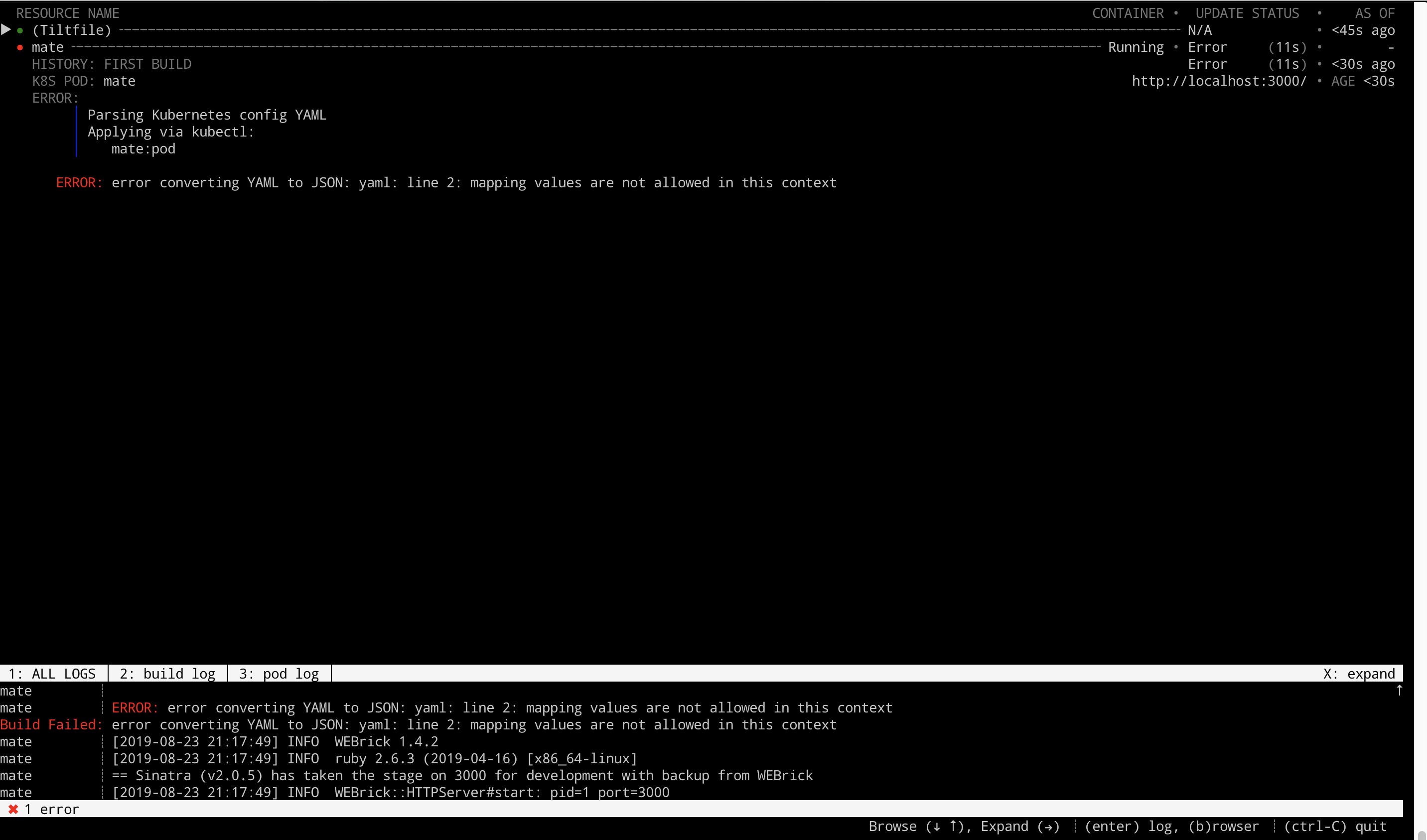
We can see in the box at the bottom of the console our service’s logs showing Sinatra has launched and that our application is awaiting requests. Let’s quickly test it now.
$ curl localhost:3000/mateMate!You’ll also see that a web-based version of this console has launched.
Let’s add an endpoint to our application and see what happens. If we flip back to the Tilt console on the command line we can see our image being rebuilt and deployed again.

And we can test our new endpoint when it’s complete.
$ curl localhost:3000/folksFolks!And that’s the basics of developing with Tilt!
Summary
I hope this was useful as a walk through. This just the basics of Tilt. You can find a lot more examples and tutorials in the Tilt documentation, including integration with CI/CD pipelines. There’s a specific tutorial for Bazel but it’s adaptable for other tools. There are also some good posts on the Tilt blog about making use of Tilt for different scenarios.